
Getting an order's work scheduled
Creating an order does not schedule it. Two separate things have to happen.
1. Tasks are generated
Section titled “1. Tasks are generated”Each line item generates tasks from its product’s task template. No template, no tasks — this is the usual reason a brand-new order looks empty.
2. Tasks are scheduled
Section titled “2. Tasks are scheduled”A task counts as scheduled once it has both a build date and a builder. Until then it sits in Capacity Planner under Unscheduled Tasks with a blank Scheduled column.
Scheduling work, step by step
Section titled “Scheduling work, step by step”-
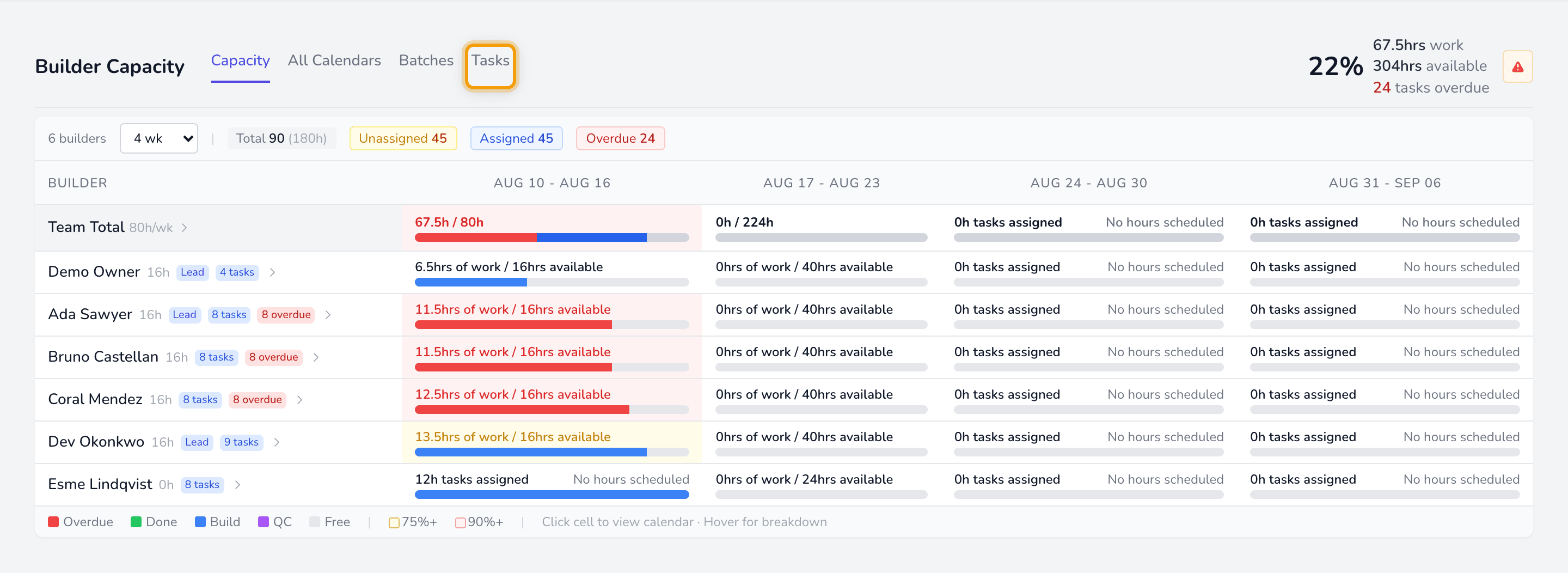
Open Capacity Planner and go to the Tasks tab.
-
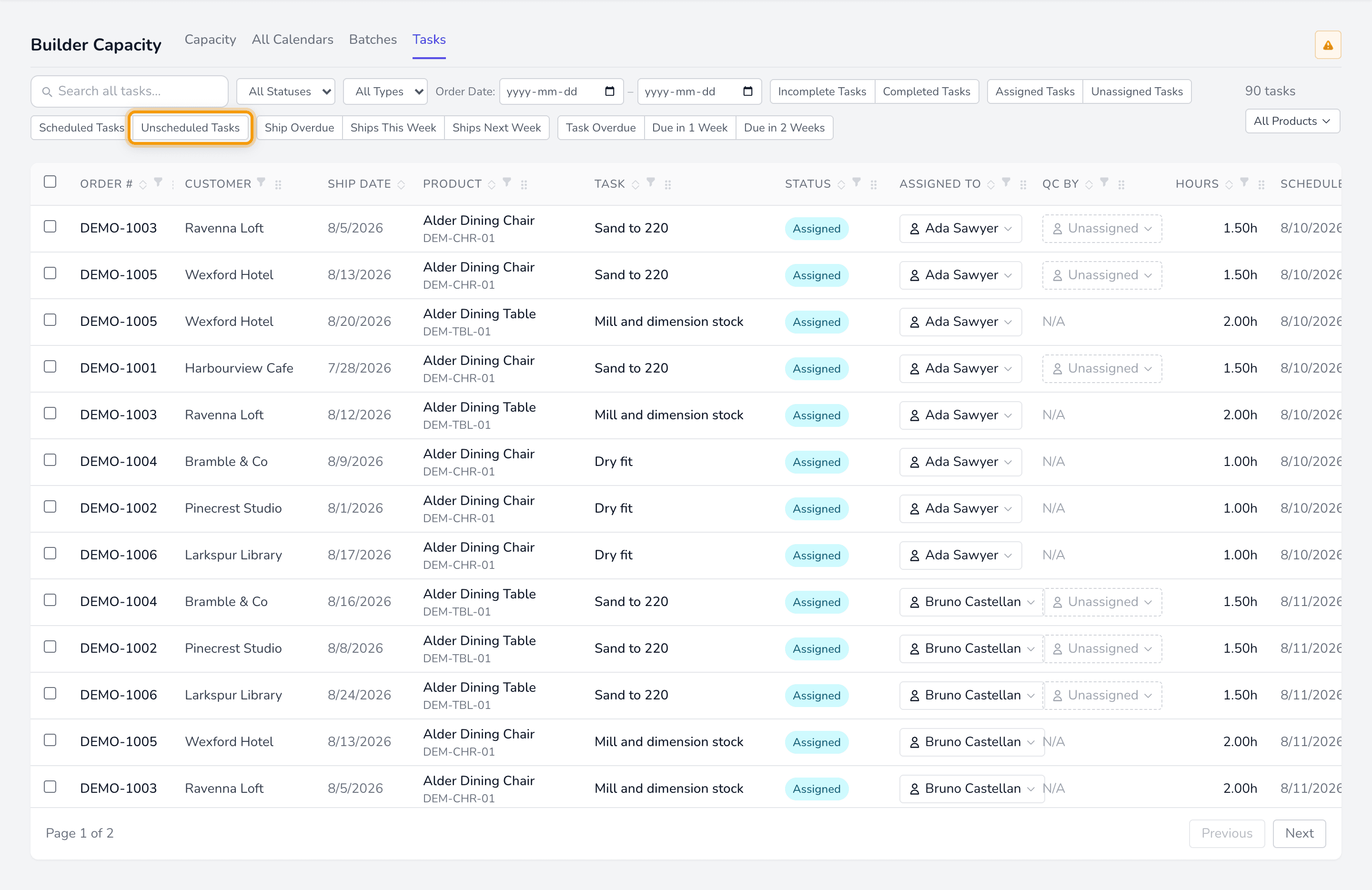
Filter to Unscheduled Tasks. This narrows the list to work that has no build date — the backlog you are trying to clear.
-
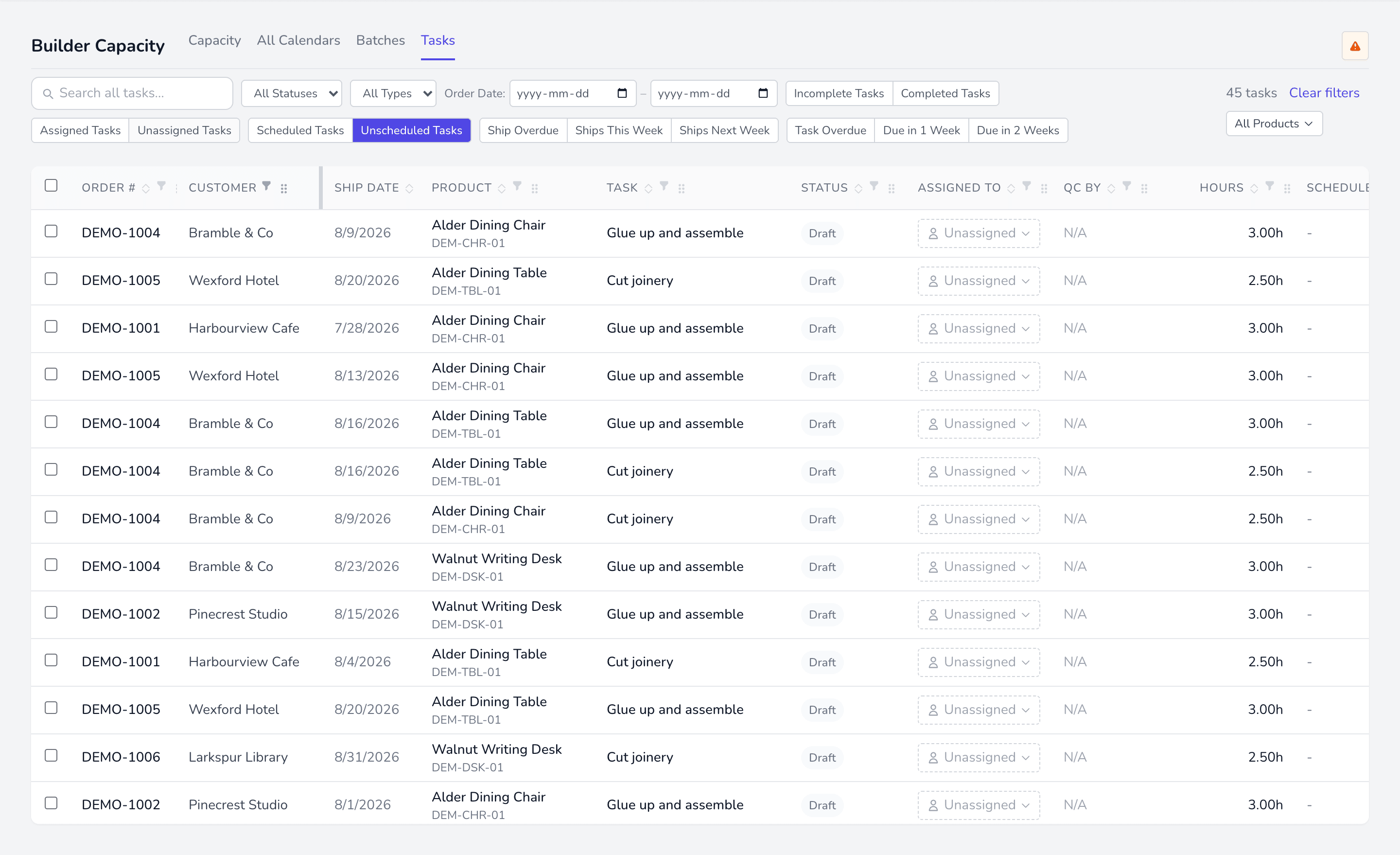
Check the Scheduled column is blank. Every row now shows an empty Scheduled cell, which is what “unscheduled” means. If a date appears here, the filter is not applied.
-
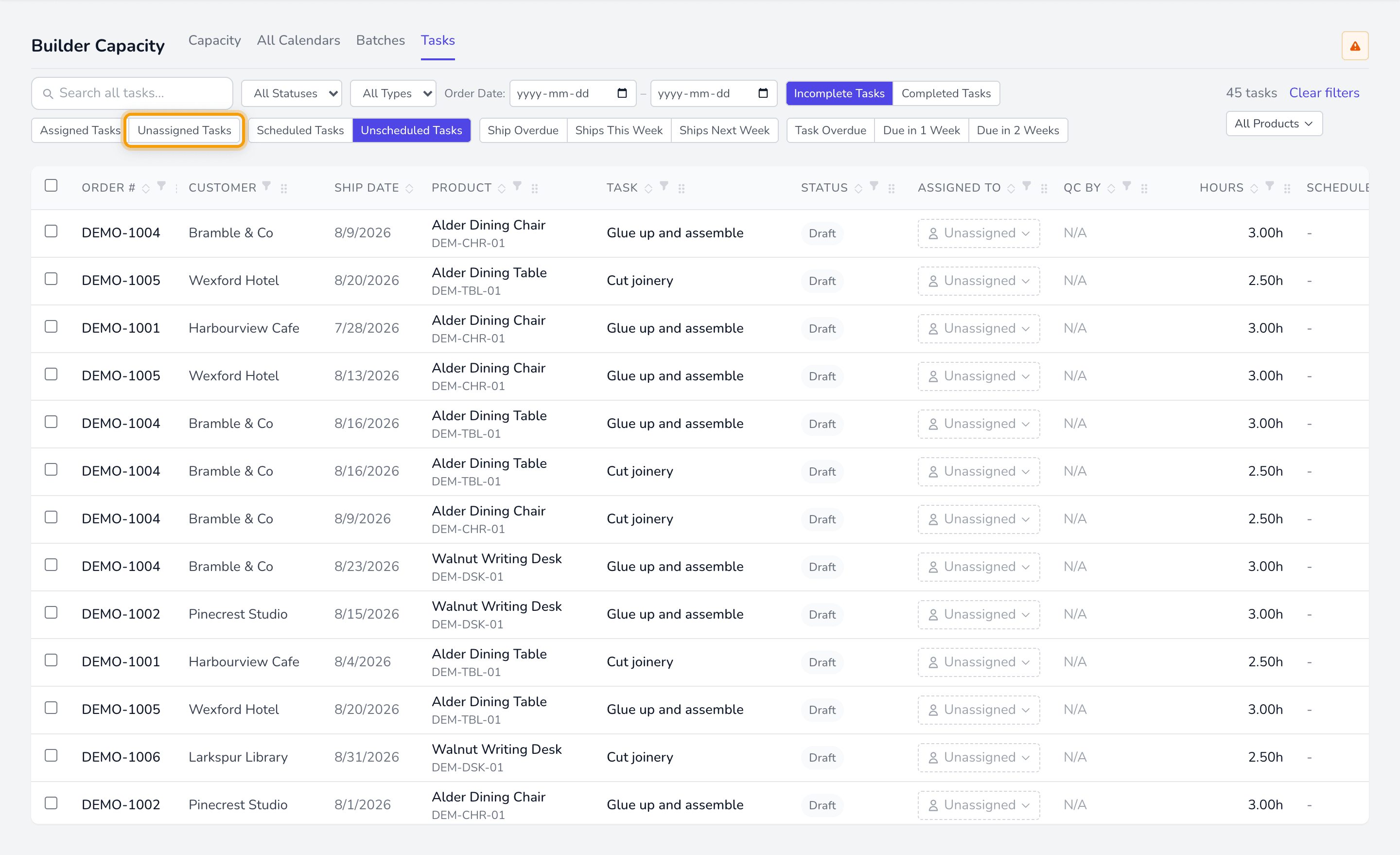
Assign a builder from the Assigned To column. Only builders qualified for that task’s job are offered, so an empty list means a missing qualification rather than a missing person.
-
Set the date. Assigning a builder clears any existing build date so the schedule can be recalculated for the new person — set the date after assigning, not before.
When a task will not schedule
Section titled “When a task will not schedule”| Symptom | Cause |
|---|---|
| No tasks on the order | The product has no task template. |
| Assigned To list is empty | No builder is qualified for that task’s job. |
| Builder has no room | No availability entered for that week. |
| Task will not sit on the calendar | Its duration exceeds the availability block. |